


Sample Fonts
Make a text with Formats = p4, then center. I would bold the whole line too
Make a text line Formats = p5, then center
Then the row – add a class called outlineborder. If font color is wrong, add another class = darkfont
OR – try a “Call to Action” block.
Two fonts are Lora, sans-serif (H1-H3) and
and normal (incl H4-H6) which is Open Sans, sans-serif
This is an H1 title with bold and some italics as well.
This is an H2 Title with some bold and some italics as well
This is an H3 Title with some bold and some italics as well
This is an H4 Title with some bold and some italics as well
This is an H5 Title with some bold and some italics as well
This is an H6 Title with some bold and some italics as well
THIS IS H1 WITH ALL CAPS with BOLD AND SOME ITALICS AS WELL.
and a second line
THIS IS H2 WITH ALL CAPS with BOLD AND SOME ITALICS AS WELL.
and a second line
THIS IS H3 WITH ALL CAPS with BOLD AND SOME ITALICS AS WELL.
and a second line
THIS IS H4 WITH ALL CAPS with BOLD AND SOME ITALICS AS WELL.
and a second line
THIS IS H5 WITH ALL CAPS with BOLD AND SOME ITALICS AS WELL.
and a second line
THIS IS H6 WITH ALL CAPS with BOLD AND SOME ITALICS AS WELL.
and this is a second line
This is a link somewhere in some text
and a second line
When you bold some text and put a link it looks like this or ALL CAPS LIKE THIS
JackRabbit tables also use this same normal Open Sans font.
—————
PARAGRAPHS:
This is a normal p0 or normal paragraph
This is a great p1 styled paragraph
with a second line
This is a great p2 styled paragraph
with a second line
This is a great p3 styled paragraph with bold a link and some italics
with a second line
This is a great p4 styled paragraph. It looks better with bold
with a second line
This is a great p5 styled paragraph with bold, some italics and a link
with a second line
This is a great p6 styled paragraph with bold, some italics and a link
with a second line
—————
TESTING
This is a great TEST styled paragraph
with a second line
This is a great TEST styled paragraph
with a second line
Advanced buttons – not so nice as these
plus you have to mess with the font color as well as the background – not as fun as the other simple buttons. BUT NOW THEY LOOK THE SAME as Simone likes them on Dec 18 2025
GO buttons. NOT Rounded. NOT Square – but YES to ROUND
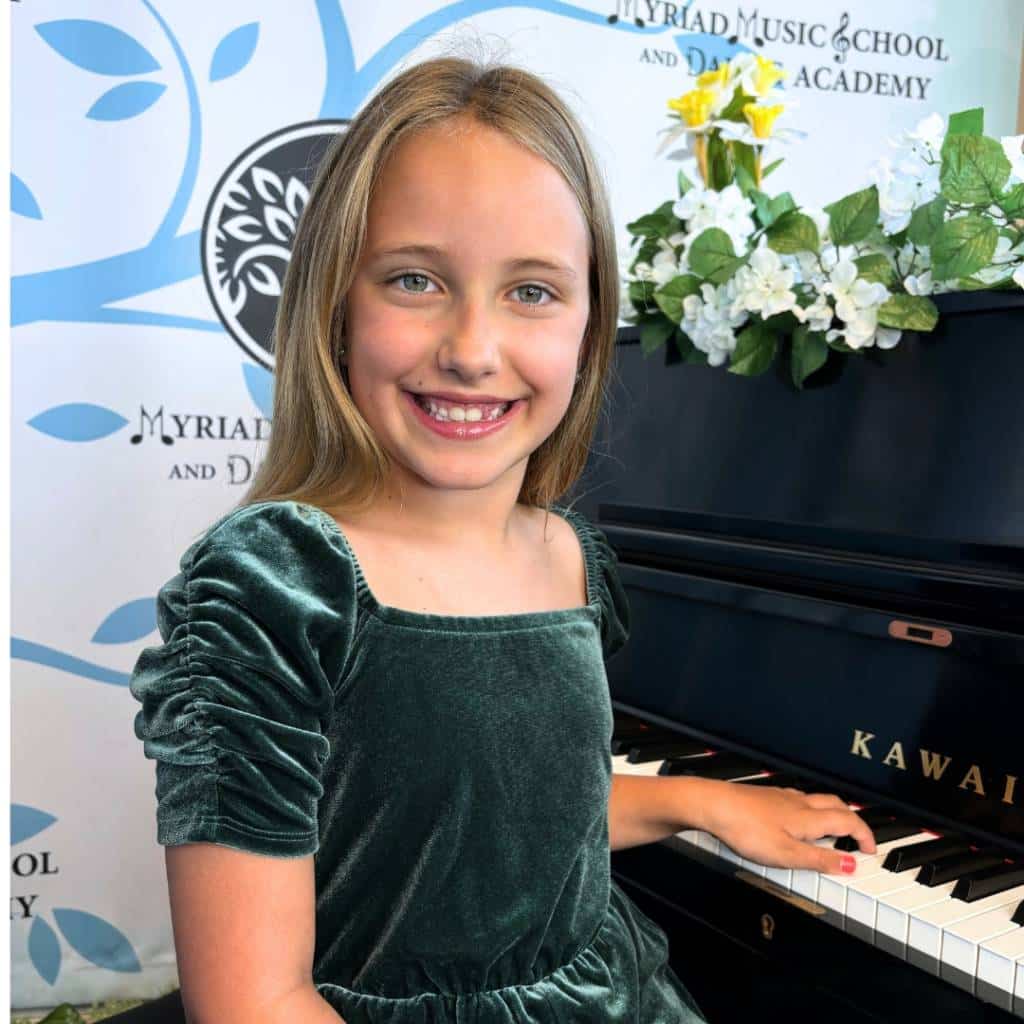
So when inserting images – do NOT use the text editor if all your doing is adding an image. Use the “single image” widget. On the left, i chose an image and chose “rounded” (takes off sharp corners) “round” is a circle- might look softer. I also centered it and put the size as “large” (by default you will see thumbnail which is low quality).
On the right, i left it as style=default, still centered and image size = large.
This CENTER column – is vertically centered – how?
- Edit the ROW – edit it add this “Extra Class”= row-equal-height
- MAYBE – For each column COLUMN w. the edit pencil add this to the Extra Class box= verticalcentered (optioknal if you need to force)
